Docker - Containerize your Springboot app
What is docker ?
Docker is similar to a virtual machine, which can isolate your application from the system's environment.
It mainly solves the issue of “It works on my machine”; if we execute the app, it might require resources other than assets, such as the JRE, a database, and others. Or maybe your app is compatible with a specific version of the JRE, but someone else might not have that version, so they would need to install the necessary resources to run your app, right?
Here Docker comes into the picture: it basically creates a container—a lightweight virtual environment—which runs on your host OS kernel. In that container, you can use the version of the JRE that is required for your app without actually installing it. Because of that, you can run multiple apps with different versions of the JRE or resources.
In short: Docker is used to create a container that includes everything to run your app, including code (JAR), the JRE, assets, and libraries.
Lets see how we can containerize our spring boot app.
Step 1 :
Clean and build you jar file.
open terminal and use : .\mvnw clean package
or
Build Image via Services Tool Window:
Go to
View → Tool Windows → ServicesExpand
Docker → ImagesClick ➕ (“Add Service”) → Choose
Dockerfile
→ Navigate to your project root → selectDockerfileRight-click the Dockerfile →
Build ImageEnter:
- Image tag: e.g.,
my-spring-app:latest
- Image tag: e.g.,
Click OK
it will create Jar file of your app in /target folder
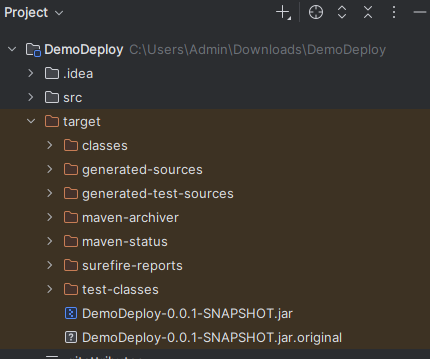
Here you can see DemoDeploy-0.0.1-SNAPSHOT.jar is generated.
Step 2:
start your docker desktop app then check it by executing command docker images
if i execute without any error that means your docker is running properly.
now create file in root folder as Dockerfile note : file name should be same as shown here.
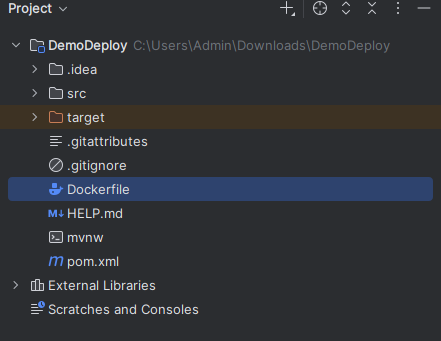
Step 3:
Create add docker image details.
 # Use JDK 21 JRE (matches your dev environment)
FROM eclipse-temurin:21-jre-alpine

# Set working directory
WORKDIR /app

# Copy your built JAR into the container
COPY target/DemoDeploy-0.0.1-SNAPSHOT.jar app.jar

# Expose port 8080 (default Spring Boot port)
EXPOSE 8080

# Run the app
ENTRYPOINT ["java", "-jar", "app.jar"]
here :
FROM → this is base JRE image which we will uuse to run our app in container.
WORKDIR → here we will save our project
COPY → we will copy the jar file and rename it as app.jar for ease
EXPOSE → we will use 8080 port for our app this is virtual port of container
ENTRYPOINT → this will contain commands to run our jar file.
Step 4:
Now Build image for our app from that docker file
Use this command : docker build -t spring-first-app:1.0 .
and check created image using command : docker images
it will show you some thing like this

Step 5:
Now run the image and create container using command
docker run -p 8080:8080 -d spring-first-app:1.0 .
Here
-p 8080:8080 → we are binding our virtual port to host os 8080 port
-d → we will run this container in detached mode (background)
check if its running or not by using : docker ps
it will show you running containers.

This is how you can containerize your springboot app by simply doing this 5 steps.
Now you can use your springboot app directly by running it in a container.
